Install ReplyNative
Eight short steps, each with a real screenshot.
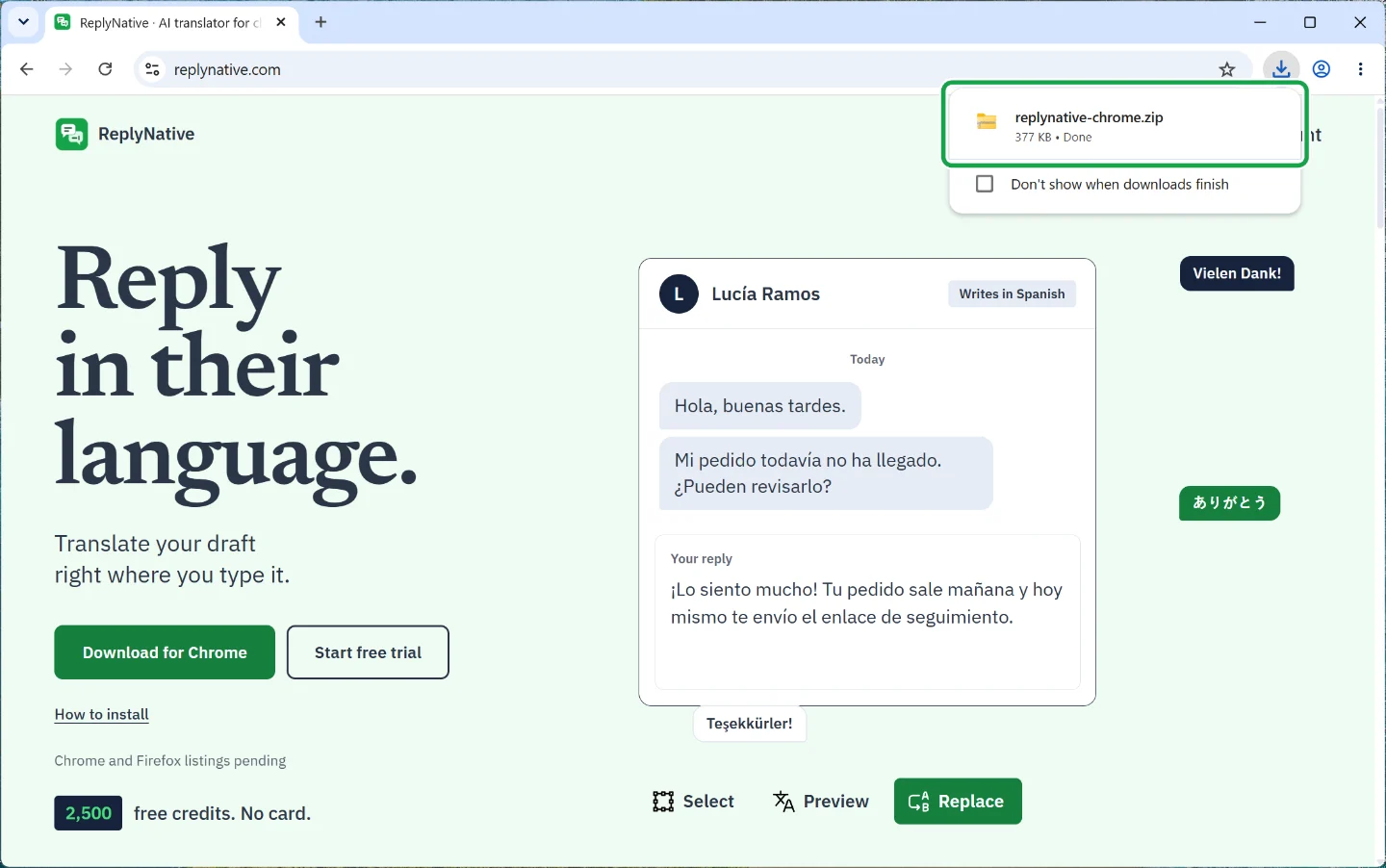
Download the ZIP
Chrome saves replynative-chrome.zip in your Downloads folder.
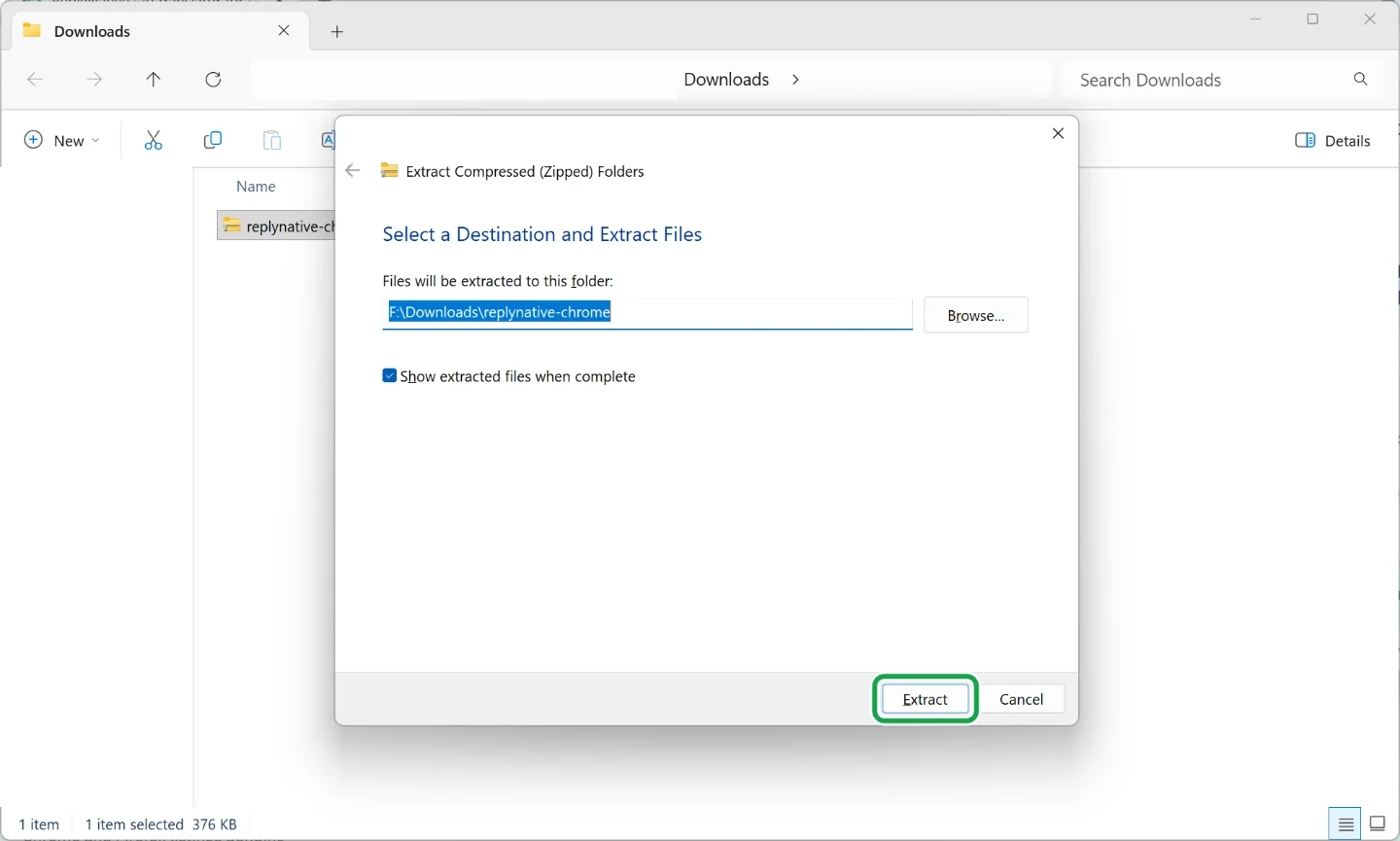
Unzip it
Right-click the file and choose Extract all, then Extract. On a Mac, double-click it.
Turn on Developer mode
Open
chrome://extensionsin a new tab. The switch is at the top right.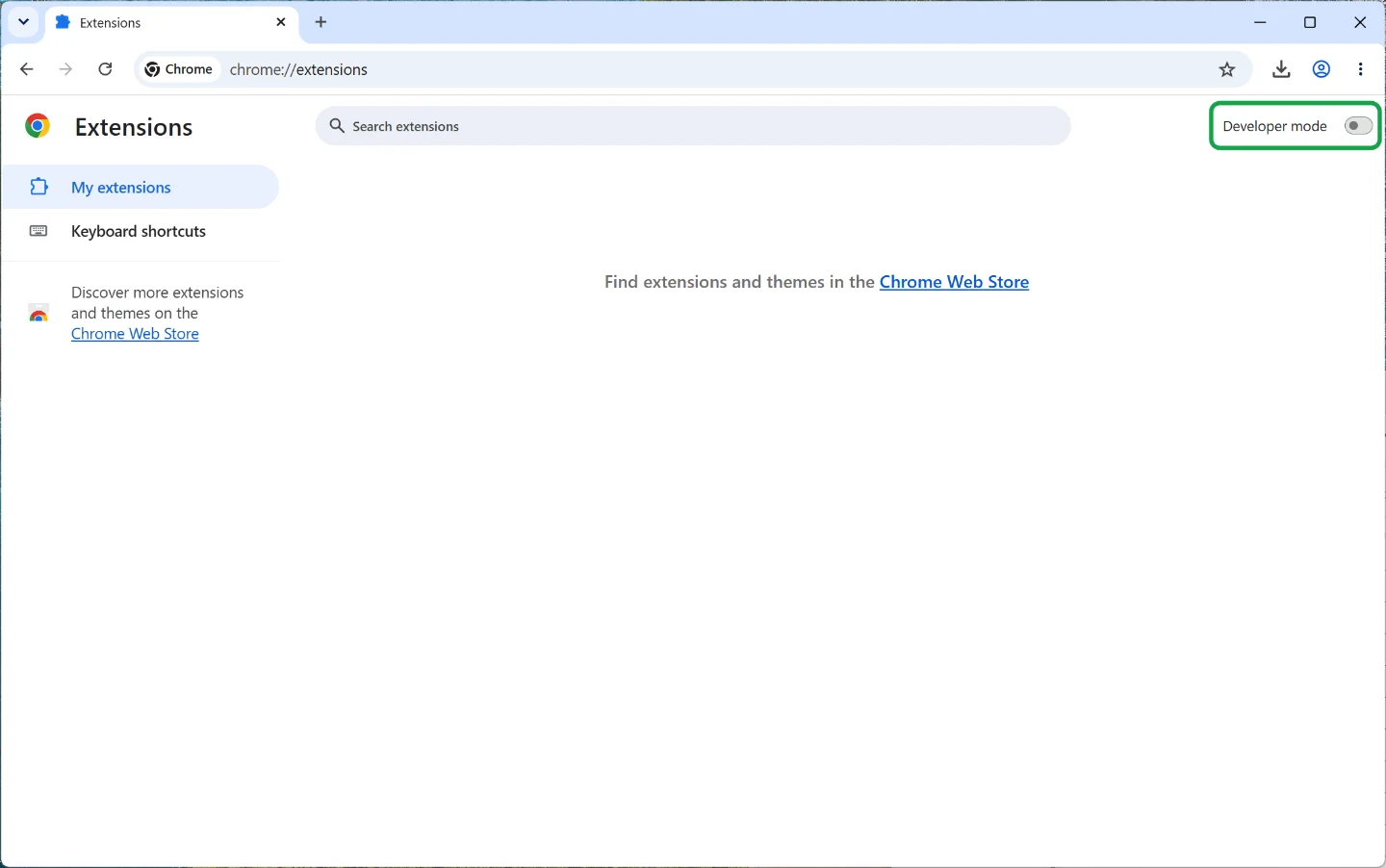
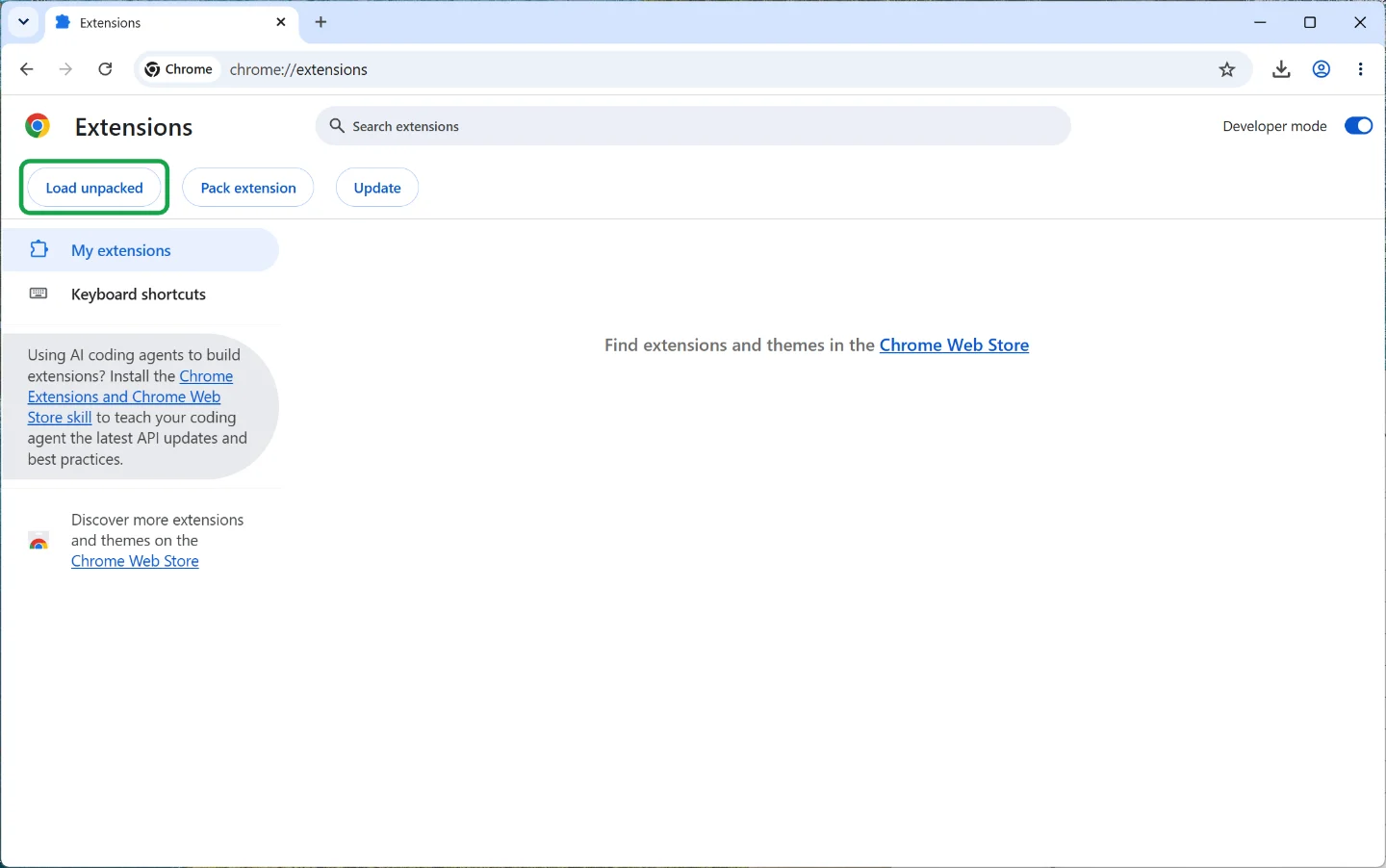
Click Load unpacked
The button appears once Developer mode is on.
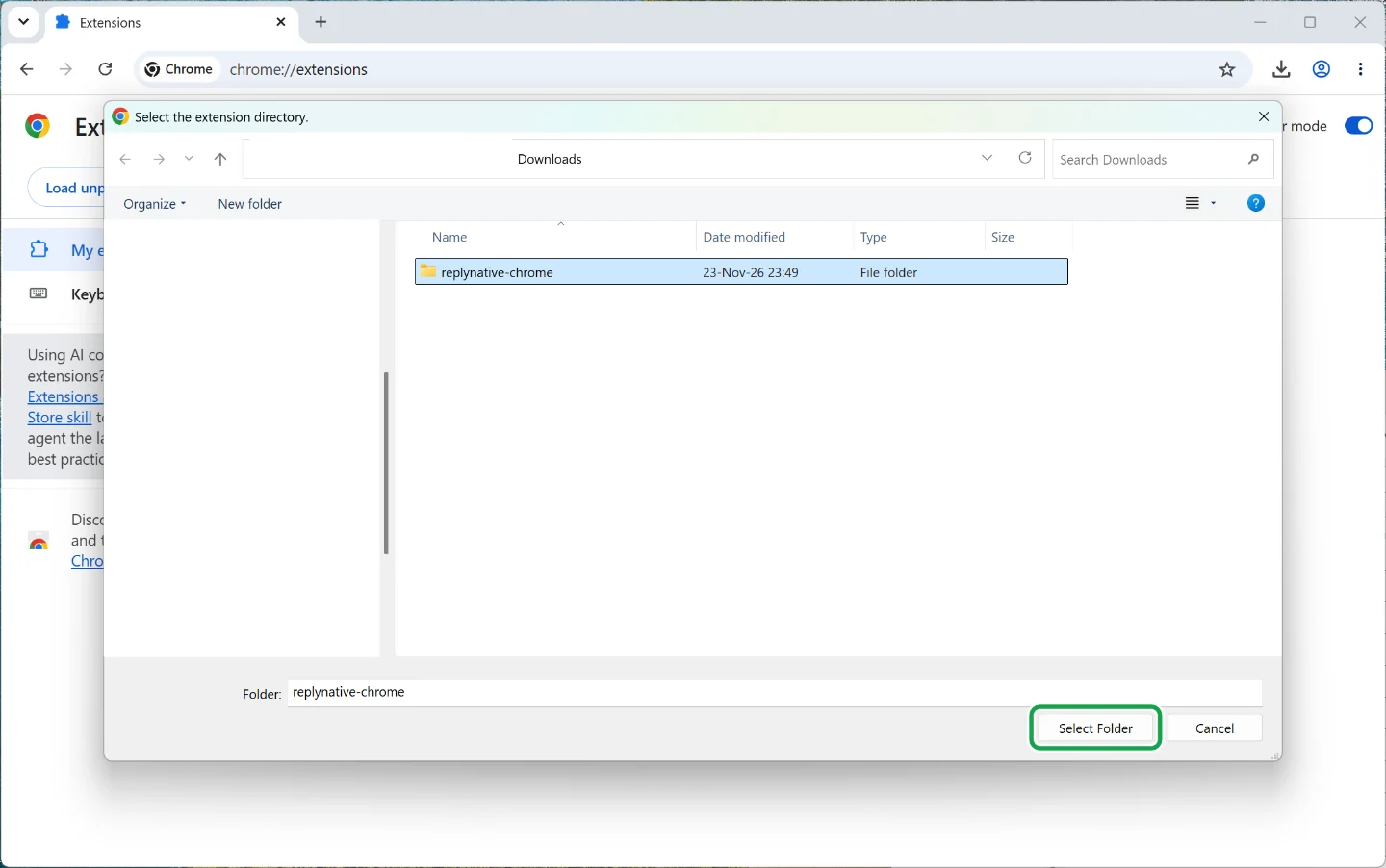
Pick the unzipped folder
Choose replynative-chrome, the folder rather than the ZIP, then click Select Folder.
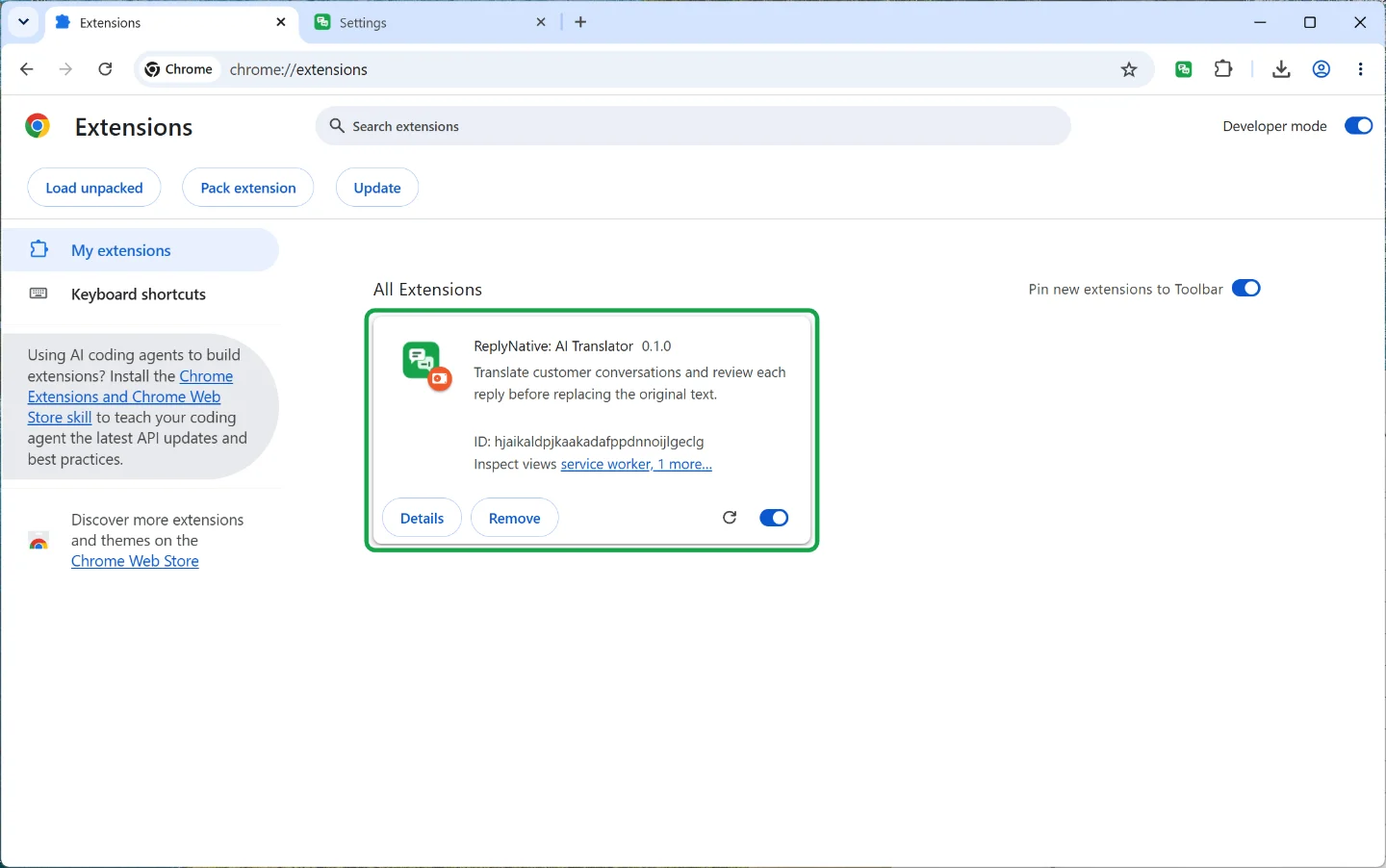
It’s installed
ReplyNative appears with its version. Keep the folder: Chrome runs the extension from it.
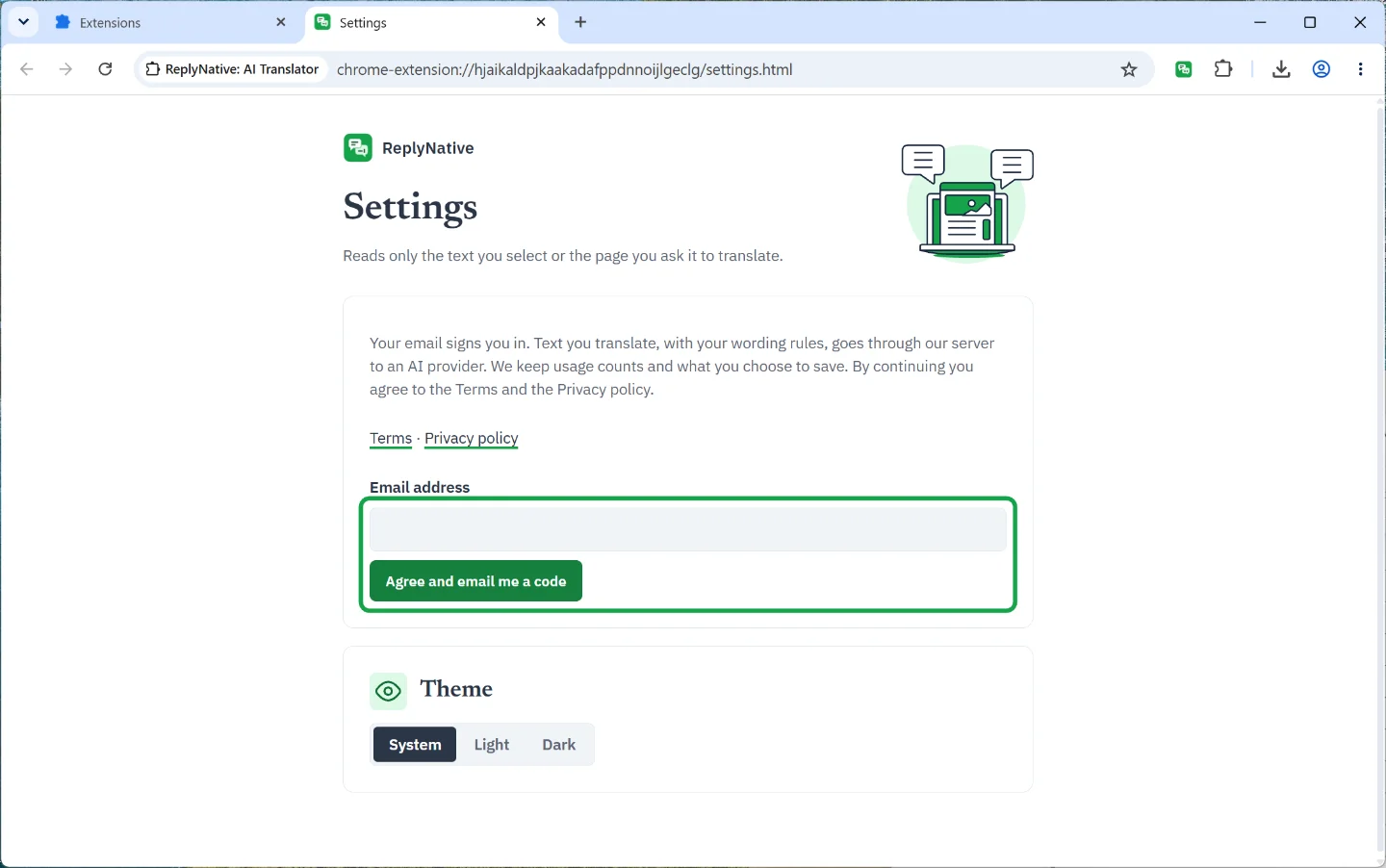
Sign in
Its settings open in a new tab. Enter your email, then the code we send you.
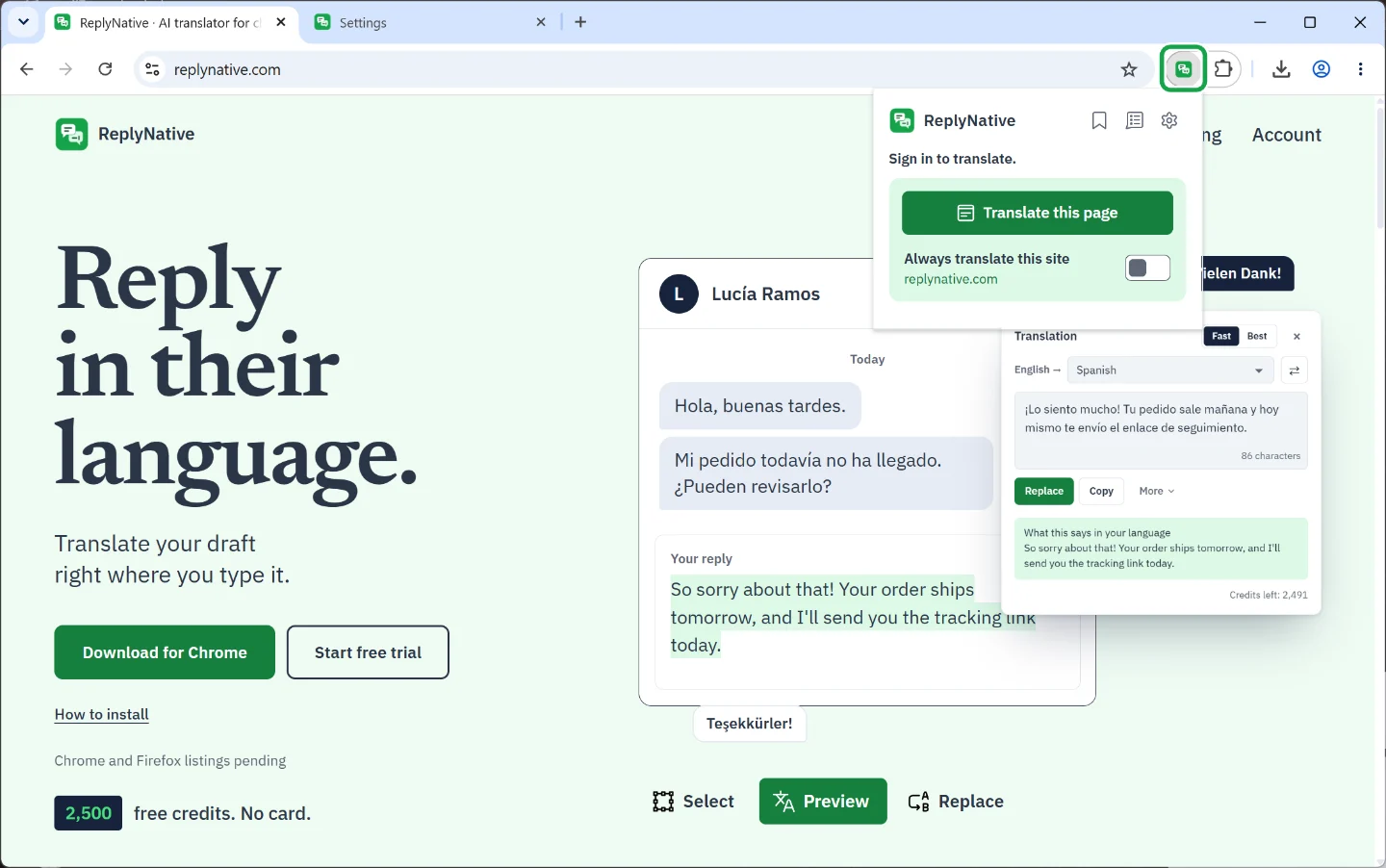
Open it from the toolbar
Click the ReplyNative icon. Don’t see it? Click the puzzle piece and pin it.
Updating
Download the new ZIP and unzip it over the same folder. Then click the reload arrow on the ReplyNative card.